Shadowrocket Setup Guide
Import a Subscription and Connect for the First Time
Follow the steps in order: add a server, choose a mode, connect, test, and troubleshoot. First confirm that an existing server works, then adjust rules and automatic connection settings as needed.
All images on this page are official App Store screenshots that help identify options and fields; they do not show your device's current connection status. To manage multiple subscriptions, set update behavior, or organize servers, see the Subscription and Server Management Guide.
Add a Server or Import an Existing Subscription
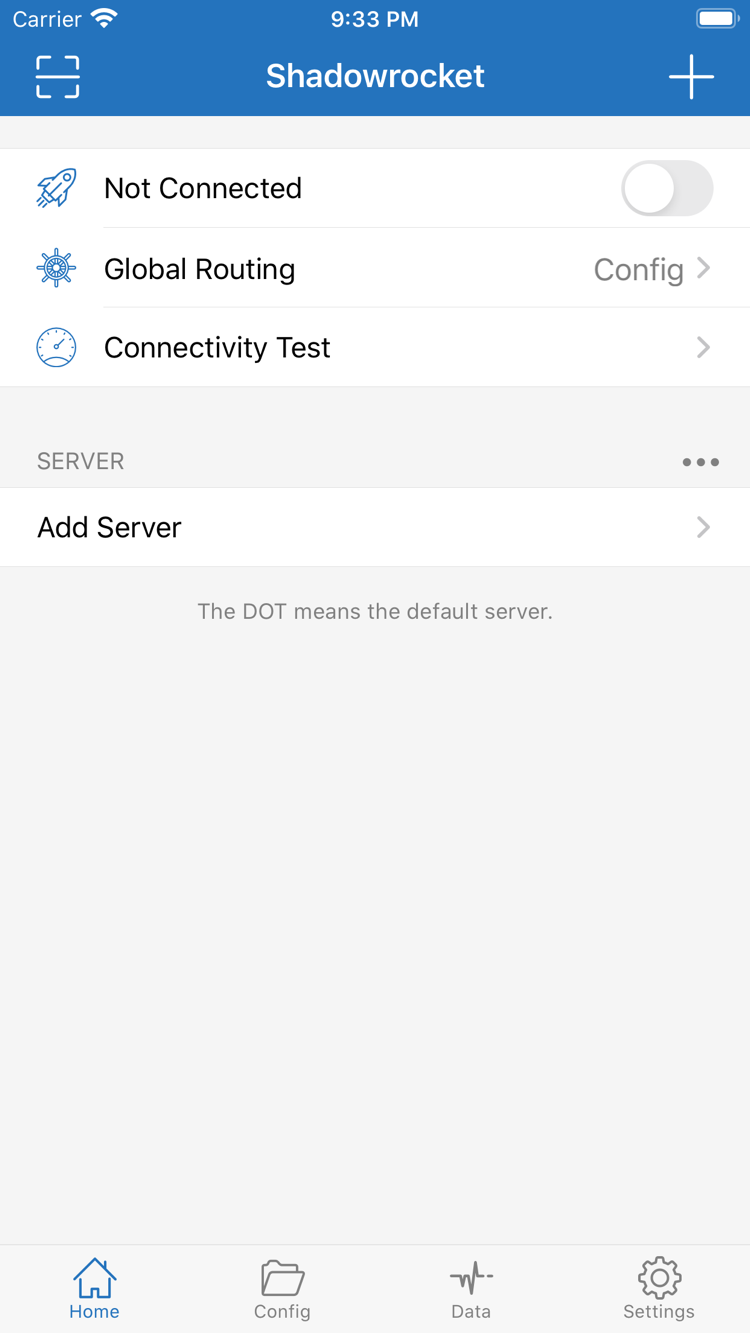
Open Shadowrocket's Home screen and check the SERVER group. If no servers are listed yet, tap Add Server. A subscription link and individual server details require different inputs: don't paste a full subscription URL into Host or use an ordinary webpage address as a subscription. Identify which type of information you have before choosing the right option.
Have a Subscription Link? Choose Subscribe
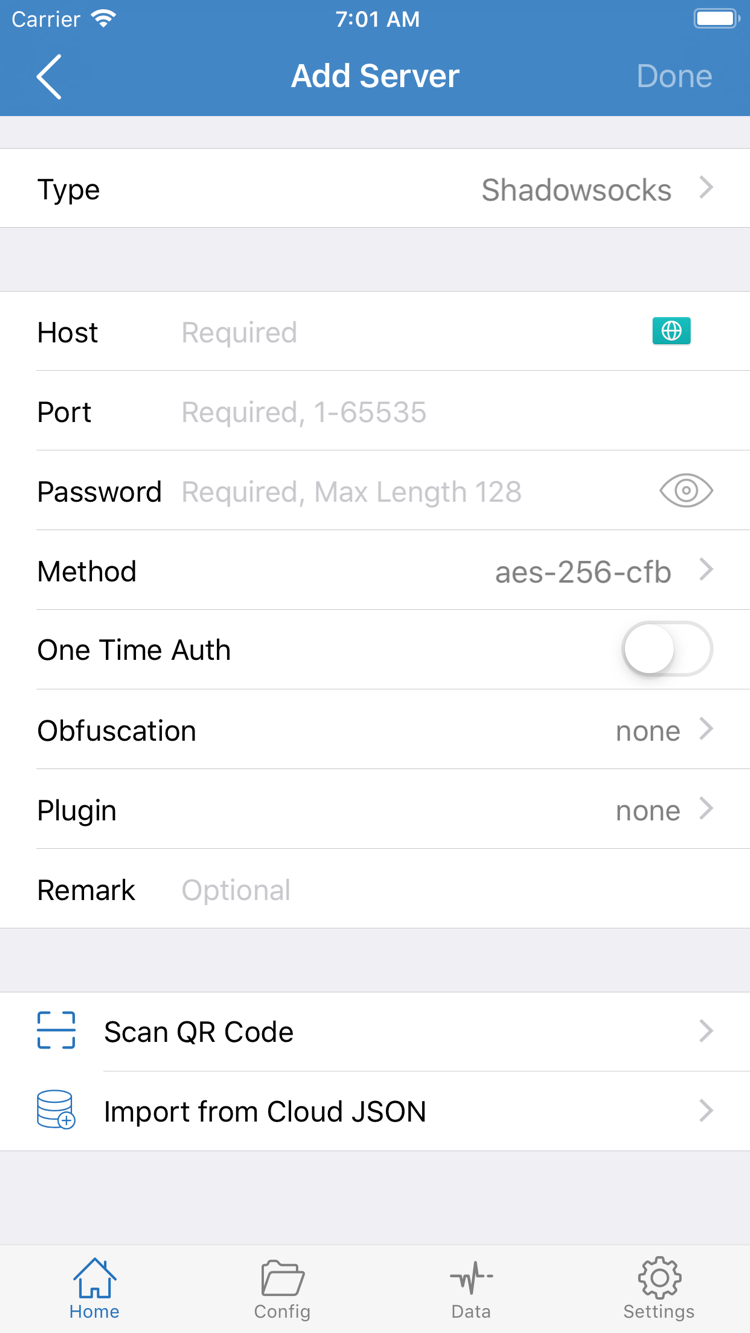
In Add Server, tap Type and choose Subscribe, then enter the full subscription link in the URL field. Check for extra spaces, line breaks, or explanatory text added by a messaging app. Content after a question mark in the URL may be access credentials, so don't remove or change it casually. Add a recognizable name for the subscription, save, return to Home, and wait for it to load.
A successful import means selectable servers appear in the list—not just that the subscription name was saved. If you see a group with no entries, update the subscription first, then check whether the link is still valid and whether the current network can retrieve its contents. Updating a subscription and connecting to a server are separate steps: a successful update doesn't mean every server will connect, and a failed update doesn't necessarily mean previously saved servers are no longer valid.
Have Individual Server Details? Fill In the Fields for Its Type
If you have details for a single server, choose the protocol that matches them under Type. In the official screenshot's Shadowsocks example, Host is the server address, Port is the port number, Password is the server password, and Method must match the server configuration. Fields vary by Type; VMess, VLESS, Trojan, and Hysteria2 don't all use the same setup. Don't guess the protocol based on the port alone.
Check each field against the details you have, save, and return to Home to confirm the server appears in the SERVER group. The server name is just a label and does not change the connection address. If a protocol or field is unfamiliar, read the Quick Reference before entering your details; don't troubleshoot by trying random values.
QR Codes and Share Links: Check Before Importing
If you have a QR code, use Scan QR Code and allow camera access when prompted. For a server share link, use the import option provided by the app. After importing, open the entry and check its Type, address, and port. Import from Cloud JSON is for compatible cloud JSON content, not a general-purpose option for subscription links.
Subscription links, QR codes, and shared content may contain credentials; don't post them publicly. When documenting an issue, include only field names and what went wrong. By the end of this step, you should have at least one selectable server. Next, choose how Global Routing should handle traffic before turning on the connection.
Choose Config, Proxy, or Direct
Return to Home and tap Global Routing to see the current mode. This setting controls how connections are handled; it is separate from the selected server in the server list. Selecting a server doesn't mean every connection will use it. Understand the mode before interpreting results to avoid mistaking rule-based traffic differences for a server problem.
Config: Follow the Active Configuration
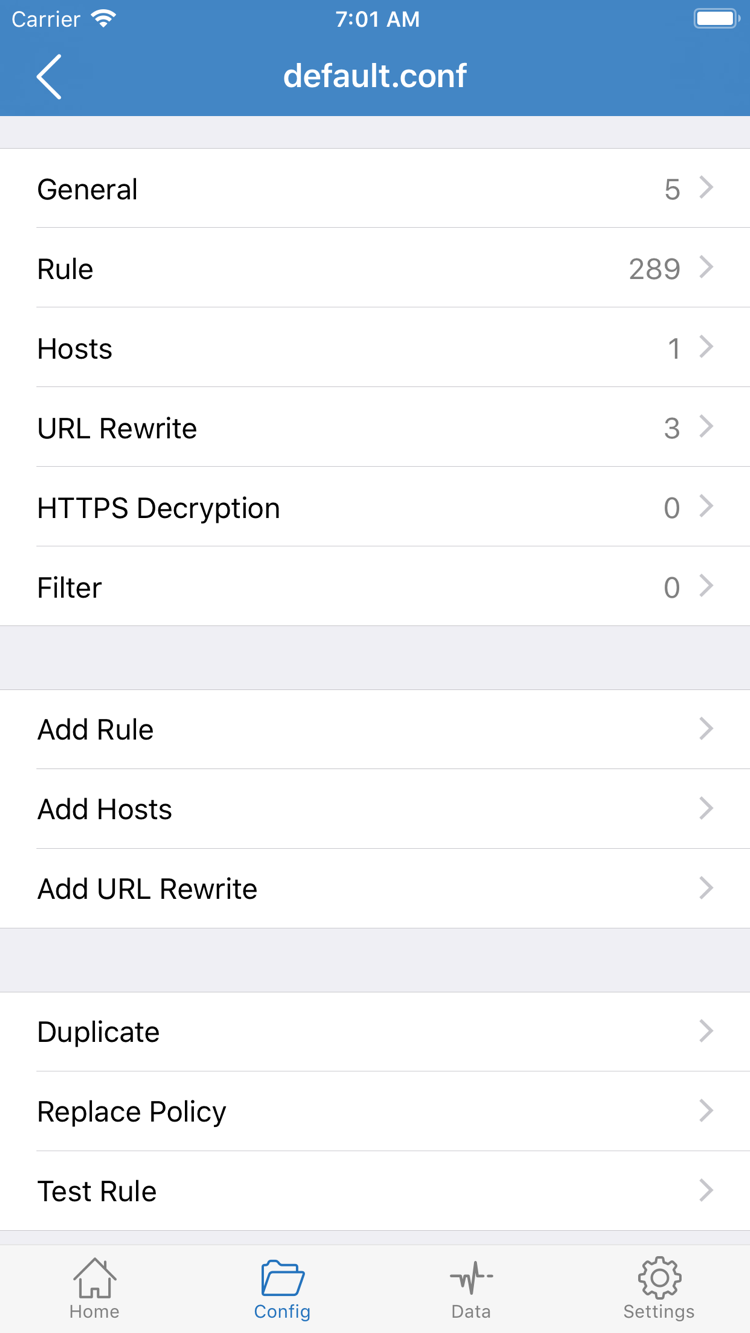
Config routes traffic according to the rules in the active configuration. Use it for everyday connections when you have a suitable configuration that you've checked. Open Config to see which configuration is active. The official screenshot of the editor shows General, Rule, Hosts, URL Rewrite, and HTTPS Decryption sections. To get started, confirm the selected configuration and review Rule; you don't need to change every section to connect.
Rules in Rule are generally evaluated in order, and the matching rule determines the policy. FINAL handles connections that didn't match earlier rules. For example, a rule that sends a destination to DIRECT may route it directly even when a proxy server is selected. PROXY, DIRECT, and REJECT in rules are policies; interpret them in context, separately from Proxy and Direct in the Global Routing menu.
Proxy: Temporarily Check the Selected Server
Proxy routes connections normally handled by the app through the proxy path, making it useful for a temporary check of an existing server. For an initial diagnosis, note the original mode, switch to Proxy, and repeat the same test with the same destination. If it works in Proxy but behaves differently in Config, check the configuration, matching rules, and DNS settings first. Don't immediately delete the server or repeatedly re-import the subscription.
Direct: Not for Testing Proxy Availability
Direct uses a direct connection path. It can help you check whether the underlying network works, but it cannot confirm that the selected proxy server is working. If a webpage opens in Direct, that only confirms that the direct path worked for that visit. After comparing, restore the mode you plan to use before continuing.
If you're not sure how rule order works, leave the configuration unchanged for now. Add Rule is for adding rules; it's not required before connecting. For more on rule keywords, see the Quick Reference to Rule Keywords and Global Routing.
Select a Server and Turn On the Connection from Home
Return to Home and select the server you want to use in the SERVER group. Confirm that the selection indicator is on the intended entry, rather than simply opening its edit screen. Check Global Routing again to make sure it matches your plan. For the first test, stick with one server and one mode to avoid changing multiple variables while connecting.
Turn on the connection switch at the top of Home. The first time you connect, the system may ask to add a VPN configuration. This authorization is required for the app to establish a system network connection. Read the app name and prompt, then confirm as directed by your device; you may need to authenticate. Complete this step in the system dialog—don't enter your device passcode in the server's Password field.
After authorization, return to Shadowrocket and check whether the status at the top has changed from Not Connected. If you previously declined authorization, the connection won't complete automatically; start it again and follow the system prompts. Device management restrictions or another active VPN configuration may also prevent a connection. Confirm that your device allows the change, then try again.
A status change means the client has made progress connecting, but it doesn't mean every destination is reachable. An unavailable server, failed DNS lookup, or unsuitable rules may only become apparent after the connection is established. Don't stop at turning on the switch: check the test results and actual access next.
If you need to change key server details or switch configurations, turn off the connection first. Save your changes, then reconnect. This makes it easier to confirm that the new settings took effect and track each change. On iPad, the layout may differ, but the steps remain the same: select a server on Home, confirm Global Routing, then turn on the connection switch at the top.
Verify with Connectivity Test and Real-World Access
Run Connectivity Test on Home and check whether it gets a response. Results depend on Test Method in Settings, and different methods check different parts of the connection. When comparing two servers, use the same network and test method. One failed test doesn't prove a server is permanently unavailable, and a low test result doesn't mean large file transfers will be slower.
Then open a browser or the app you want to use and visit a destination you're permitted to access and can easily check again. Confirm that the page content or required feature fully loads, rather than relying on a previously cached homepage. A page already on screen may be cached and doesn't prove the new connection works. If needed, make a fresh request and note the destination, mode, and selected server.
Return to Shadowrocket and check any available traffic statistics or connection records in Data. A change in data can help indicate that traffic passed through the app, but an increase alone doesn't prove that a particular connection used the proxy. In Config mode, some connections may use DIRECT according to the rules. Consider the destination's result, the mode, and the rules together; don't treat a single counter as the whole picture.
- Connection status and access both look good: Keep the current server and mode, finish the initial check, and adjust rules later as needed.
- The test responds, but access fails: Check the destination's rules, DNS, and availability. The test path may differ from the path used for actual access.
- The test fails, but access works: Check whether Test Method and the test destination are suitable before drawing conclusions. Don't delete a working configuration based on the test alone.
- All checks fail: Continue to the next step and narrow down the cause by checking import, connection, and routing in order.
To compare Config and Proxy, use the same destination, server, and underlying network, changing only the mode each time. Restore your usual configuration after the comparison. Don't change the mode, DNS, protocol settings, and server all at once to see what works; even if the connection recovers, you won't know why.
Troubleshoot by Stage Before Setting Up Automatic Connections
First identify where the problem occurs: no server after import, the switch won't stay on, nothing works after connecting, or only some destinations fail. Each points to different checks. Note the original configuration and mode, then change one thing at a time. Don't make deleting everything and importing again your first response to every failure.
No Servers Listed? Check Import and Update
If the list is empty after saving a subscription, first check that you chose the Subscribe type, the URL is complete, and the update succeeded. If entries appear but won't connect, check the specific entry's Type, Host, Port, and required authentication fields. Updating a subscription retrieves server details again, so later updates may affect entries you've edited manually. For ways to organize and back up entries over time, see the Subscription and Server Management Guide.
Can't Connect? Check Authorization and the Underlying Network
If the switch turns on and quickly turns off, first check whether system VPN configuration authorization is complete, then confirm that the device's current network is working. Turn off the connection, test the underlying network, and reconnect to the same server once it's back. If you have another known-working server, compare under the same conditions. For a single failed server, check its settings and availability before changing the entire configuration.
Only Some Destinations Fail? Check the Mode, Rules, and DNS
First confirm that Global Routing is still set to the mode you intended, then compare behavior in Config and Proxy. If the issue occurs only in Config, check the applicable rules and their order. If both modes fail, check the server and DNS resolution. DNS changes affect name resolution; entering an arbitrary address is not a general fix. If you're unfamiliar with these settings, read the DNS and Rules Glossary.
Settings: Check Before Changing
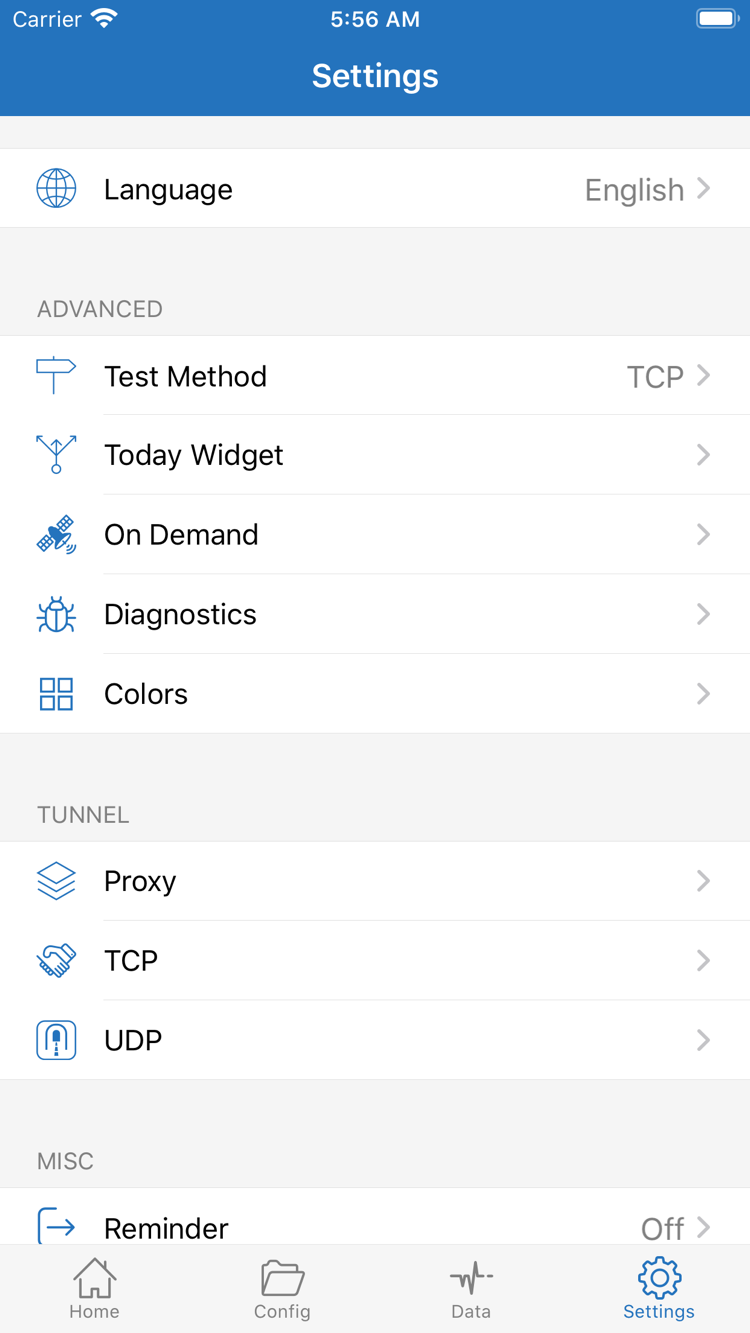
Open Settings and use the official screenshot to locate Test Method, On Demand, and Diagnostics. Test Method controls how tests are run; it doesn't increase the server's actual speed. For more details, open Diagnostics and use the time and symptoms of the failure to investigate. Before saving or sharing diagnostic information, check for subscription links, server credentials, and access records that shouldn't be public.
On Demand triggers connections based on conditions. Set it up only after manual connection and actual access both work. If the connection keeps restarting during troubleshooting, check whether On Demand is triggering it. Establish a repeatable manual test first, then add automatic conditions to distinguish basic connection issues from trigger settings.